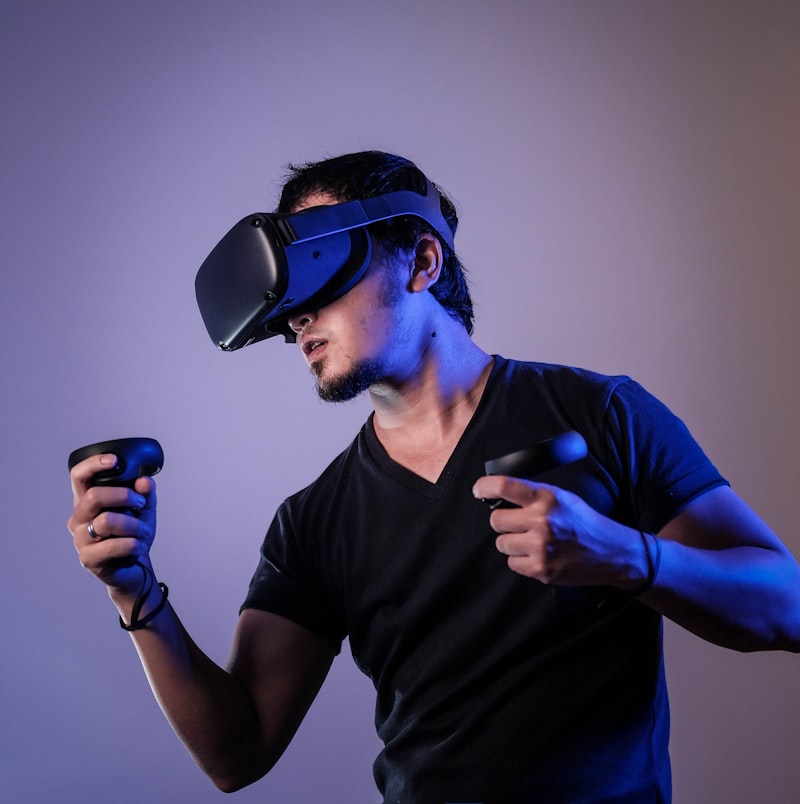
Stripchat VR Setup Guide: Oculus, Meta Quest & Vision Pro
Complete step-by-step instructions to configure 180° and 360° stereoscopic 3D adult VR live streams on Meta Quest 2, Meta Quest 3, Quest Pro, and Apple Vision Pro.
Complete step-by-step instructions to configure 180° and 360° stereoscopic 3D adult VR live streams on Meta Quest 2, Meta Quest 3, Quest Pro, and Apple Vision Pro.
Follow these optimized browser settings for seamless 60 FPS VR cam playback.
For stutter-free stereoscopic video render, ensure your connection meets these criteria.
25 Mbps stable Wi-Fi 5 (802.11ac) connection for 4K 180° streams.
50+ Mbps on a 5 GHz or 6 GHz Wi-Fi 6 router for 60 FPS UHD resolution.
HTML5 WebXR standard supported out of the box in Quest Browser & Safari.
Connect Bluetooth teledildonics toys directly to sync VR streams with haptics.